Automatically mapping drives in a recovery
If the AutoMap button is available during a system recovery, you can automatically map volumes from a backup to a recovery server. This simplifies the restore process, as you do not have to manually drag volumes from the source server to the recovery server in the BMR Agent wizard.
If you click the AutoMap button during a restore, the BMR Agent automatically maps all protected volumes from the source (protected) server to corresponding disks on the recovery (destination) server, and clears any existing data from the destination disks. Data is not cleared from disks that are not destinations in the recovery. For example, as shown in the following diagram, volumes from Disk 0 and Disk 2 in a source server are mapped to Disk 0 and Disk 2 in the destination server, and existing data remains on Disk 1 in the destination server.
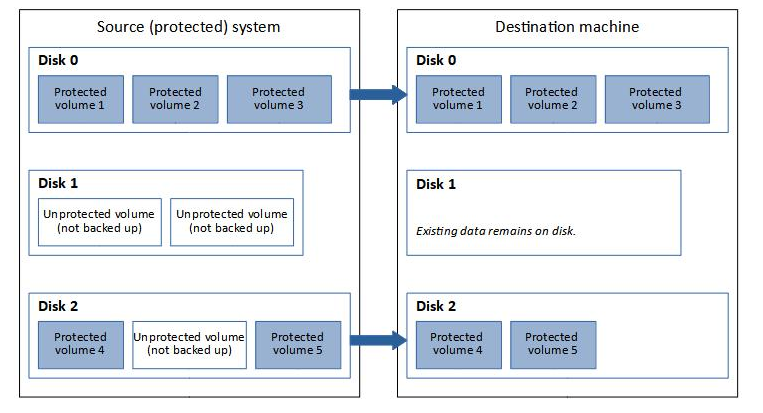
The AutoMap feature is available when the source and destination servers meet the following requirements:
-
The source and destination servers use the same firmware: either UEFI or BIOS.
-
The source (protected) server has a maximum of four disks. None of the protected disks can be dynamic disks.
-
The destination server has a maximum of four disks.
-
The destination server has the same number or more disks than in the source system. For example, if volumes are backed up on the first three disks in a source server, the destination server must have three or more disks. If volumes are backed up on the first, third and fourth disk in the source server, the destination server must have four disks.
-
Disks where volumes will be restored on the destination server are the same size or larger than the corresponding disks on the source server.
If you are restoring a BIOS-based computer, the Automap feature is not available if an MBR volume from the source system would be mapped to a disk larger than 2 TB on the destination machine.
Note: These conditions are usually met if you restore a server to the same hardware where it was backed up.