Setting up Server Backup storage
IMPORTANT: This procedure is only for Bring Your Own Cloud customers who back up servers to their own Amazon Web Services (AWS) accounts. If you back up servers to OpenText Hosted Cloud storage, the storage is set up and managed by OpenText.
With a Server Backup - Public Cloud: Bring Your Own Cloud trial or subscription, Server Backup agents back up data to and restore data from Amazon Simple Storage Service (Amazon S3) in your Amazon Web Services (AWS) account.
When you first start a Bring Your Own Cloud trial or subscription, you are prompted to set up the storage in the Management Console. During the setup, you must:
-
Enter your AWS account number.
-
Specify one or more Amazon S3 buckets for Server Backup data. Each bucket must already exist in your AWS account. For requirements, see Amazon S3 buckets for Server Backup storage. We recommend adding one bucket for each physical region that you support. For example, you could add one bucket in the United States, and one bucket in Europe. Multiple customers can back up data to the same S3 bucket, but each customer can only access their own data.
-
Create an AWS Identity and Access Management (IAM) role in your AWS account that allows Server Backup agents to back up data to and restore data from the specified S3 buckets. We recommend creating the IAM role using a CloudFormation template that you download from the Management Console, but you can also create the IAM role using the AWS Management Console, an IaC product such as Terraform, or another method. For IAM role requirements, see AWS IAM role for Server Backup agents.
You can pause the storage setup process at any time. Information that you have entered will be saved so you can resume the setup later.
You cannot change the AWS account for storing Server Backup data after it is set up in the Management Console. However, if you manage Server Backup for multiple customers or sites, you can add additional S3 buckets for storing Server Backup data. See Adding S3 buckets for Server Backup.
To set up Server Backup storage:
-
Do one of the following:
-
If you created a Server Backup - Public Cloud: Bring Your Own Cloud trial in Secure Cloud, a task on the Secure Cloud Home page prompts you to complete setup steps. In the task, click Explore and then click Manage. Review the setup steps on the System Setup tab, and then click Setup server backup. You are directed to the customer's Server Backup tab in the Management Console.
-
If you started a Server Backup - Public Cloud trial in the Management Console, or contacted your Webroot Sales representative to start a trial or subscription, log in to your Management Console.
-
-
If a message banner in the Management Console prompts you to set up Server Backup cloud storage, click Setup in the message banner.
Note: You can also click Server Backup in the navigation pane, and then click Set up on the Server Backup information page.
-
In the Server Backup Guided Setup: Backup Storage wizard, enter information on the following pages:
Note: If the storage setup was paused before it was complete, the wizard starts on the next page where information is required. To pause the storage setup, click Finish Later on any page in the wizard.
-
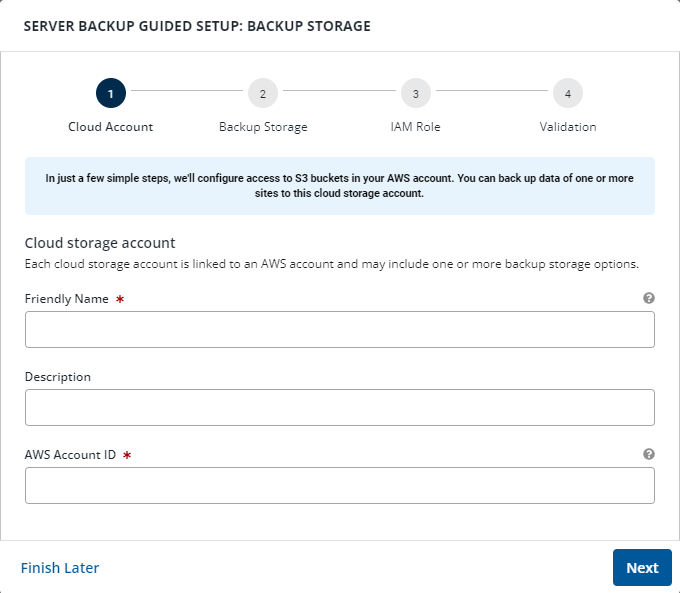
On the Cloud Account page, do the following and then click Next:
-
In the Friendly Name box, type a name for the cloud storage account. This storage account name appears in the Management Console and does not have to match your account name in AWS.
-
(Optional) In the Description box, type a description of the cloud storage account.
-
In the AWS Account ID box, type your 12-digit AWS Account ID.
-
-
On the Backup Storage page, in the S3 Bucket box, type the name of each S3 bucket where you want to store Server Backup data. Separate multiple bucket names with commas or spaces, or press Enter after typing each bucket name. Click Next.
The S3 buckets must already exist in your Amazon S3 account, and must meet the requirements listed in Amazon S3 buckets for Server Backup storage.
You can also add additional S3 buckets after the initial cloud storage setup. See Adding S3 buckets for Server Backup.
-
On the IAM Role page, do one of the following to create an IAM role in your AWS account that allows Server Backup agents to access specified S3 buckets:
-
(Recommended) To create the IAM role using a CloudFormation template, click Download Template.
You can then sign in to your AWS account and, in the AWS CloudFormation console, create a stack with the IAM role using the downloaded template. For the stack name, use any name that has not been used previously. You must have permissions in AWS to create the stacks using CloudFormation templates. For more information, see Permissions for creating the IAM role using a CloudFormation template.
IMPORTANT: If you are an administrator for an MSP or partner with more than one Management Console, and want to use the same AWS account for all of your Server Backup storage, only download and use a CloudFormation template when setting up storage in your first console. When setting up storage in additional consoles or adding S3 buckets, do not download a CloudFormation template. Instead, edit the IAM role manually. See AWS IAM role for Server Backup agents.
-
To create the required role in your AWS account without using a CloudFormation template, record the External ID.
You can then create the IAM role in your AWS account using the AWS Management Console, an IaC product such as Terraform, or another method. For IAM role requirements, see AWS IAM role for Server Backup agents.
Note: If you need time to create the IAM role, click Finish Later to pause the storage setup. When you start the storage setup again, the wizard starts on the next page where information is required.
After you create the IAM role for Server Backup agents, select I have created/updated the IAM role in the AWS management console, and then click Next.
-
-
On the Validation page, check whether the IAM role allows access to each S3 bucket. Do one of the following:
-
If an S3 bucket validation fails, click Failed in the Status column to view error information.
After making required changes, click Refresh validation to check the IAM role again.
-
If an S3 bucket validation status is Passed, click Save.
When at least one S3 bucket passes validation, you can set up Server Backup trials and subscriptions for sites. See Starting a trial in Secure Cloud.
-
-