Source and recovery server icons
As described in Recovering a Windows server, on the Plan the recovery page of the BMR Agent wizard, you can map drives from the source (backed up) server to the recovery (destination) server. Icons on the page represent volumes and disks in the servers, as described in the following tables.
Volumes that were backed up (Blue rectangles)
Blue rectangles represent volumes that were backed up on the source server and can be recovered.
|
Item |
Example |
Description |
|---|---|---|
|
ESP/EFI partition |
|
An Extensible Firmware Interface (EFI) System Partition. A UEFI-based system must have an EFI system partition or the system will not boot up. See Recovering UEFI-based systems. |
|
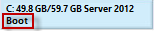
Boot volume |
|
A boot volume. A BIOS-based system must have a boot volume or the system will not boot up. See Recovering BIOS-based systems. |
|
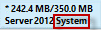
System volume |
|
A system volume. A BIOS-based system must have a system volume or it will not boot up. See Recovering BIOS-based systems. A volume with the “System” label can also be an OEM partition. See Recovering systems with OEM partitions. |
|
System and Boot volume |
|
A volume that is both a system and boot volume. See Recovering BIOS-based systems. |
|
Optional volume |
|
Volume that was backed up and can be restored, but is not required for the destination machine to boot up. |



Volumes that were not backed up (Gray rectangles)
Gray rectangles represent volumes that were not backed up on the source server and cannot be recovered.
|
Item |
Example |
Description |
|---|---|---|
|
Recovery volume |
|
A recovery volume that contains system files, drivers and factory default setup information. Recovery volumes are not backed up. |
|
MSR partition |
|
Microsoft Reserved (MSR) partition. An MSR partition is disk space reserved for Windows use on a GPT disk. If one is required in the destination machine, it is created automatically. |
|
Volume |
|
In a source system, a volume that was not backed up. In a destination machine, an existing volume on the disk. You can delete, change or overwrite an existing volume. |
|
Unallocated space |
|
Unallocated space on a disk. |
|
Free space |
|
Free space on a disk. |


Disk icons
An icon appears for each disk in the source server and destination server. The icon color represents the disk format.
|
Item |
Example |
Description |
|---|---|---|
|
GPT-formatted disk |
|
A green disk icon represents a GPT-formatted disk. If you drag a volume to an uninitialized disk on a UEFI destination machine, the disk type automatically changes to GPT. |
|
MBR-formatted disk |
|
A blue disk icon represents an MBR-formatted disk. |
|
Uninitialized disk |
|
A gray disk icon represents an uninitialized disk. |


